【Unity, Teddy, 3Dモデリング】ゲーム実行中に好きな色の3Dモデルを作製する方法
はじめに
この記事ではUnityで「Teddy」を使って好きな色の3Dモデルを作製する方法を紹介します。
前回の記事
準備
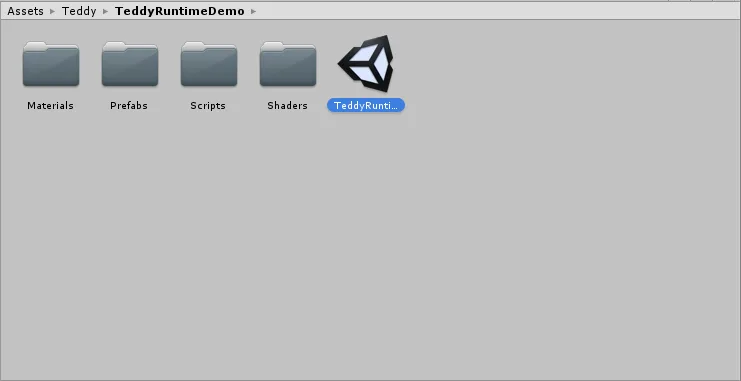
Teddy をアセットストアからインポートすると、Teddy / TeddyRuntimeDemo フォルダの中にTeddyRuntimeDemo.unity というシーンがありますので、それをダブルクリックで開いてください。
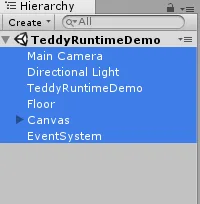
Hierarchy のオブジェクトを全て選択し、File > New Scene を開いて、新しいシーンに貼り付けてください(New Scene に最初からあるMain Camera と Directional Light は削除して構いません)
TeddyRuntimeDemo.cs
using UnityEngine;
using UnityEngine.EventSystems;

using System;
using System.Linq;
using System.Collections;
//List用
using System.Collections.Generic;

using Teddy;

namespace TeddyDemo
{

    public class TeddyRuntimeDemo : MonoBehaviour {

        public enum OperationMode
        {
            Default,
            Draw,
            Move,
            Cut
        };

        [SerializeField] new Camera camera;
        [SerializeField] Shader lineShader;
        [SerializeField] GameObject prefab;
        [SerializeField] bool simulate;

        Material lineMat;

        OperationMode mode;

        List<Vector2> screenpoints;
        List<Vector3> points;
        List<Puppet> puppets;

        Puppet selected;
        Vector3 origin;
        Vector3 startPoint;

        //手書きの円を表示する場所をずらすオフセット
        const float zOffset = 10f;

        void Start () {
            //カメラが無いなら追加
            if(camera == null) {
                camera = Camera.main;
            }

            screenpoints = new List<Vector2>();
            points = new List<Vector3>();
            puppets = new List<Puppet>();
            lineMat = new Material(lineShader);
        }

        void Update () {
            //ボタンなどのuGUIをクリックしたときは画面クリックを無視する
            if (EventSystem.current.IsPointerOverGameObject()) return;

            //マウスの座標を取得
            var screen = Input.mousePosition;


            switch (mode)
            {

                case OperationMode.Default:

                    if (Input.GetMouseButtonDown(0))
                    {
                        //Listを全て消去
                        points.Clear();
						screenpoints.Clear();

                        // メインカメラからクリックしたポジションに向かってRayを撃つ。
                        var ray = camera.ScreenPointToRay(screen);

                        RaycastHit hit;

                        //Rayとオブジェクトが衝突していないかを調べる
                        if (Physics.Raycast(ray.origin, ray.direction, out hit, float.MaxValue))
                        {
                            //RayがあたったオブジェクトのPuppetクラスを取得
                            var puppet = hit.collider.GetComponent<Puppet>();

                            //RayがヒットしたオブジェクトにPuppetクラスがあったら
                            if(puppet != null)
                            {
                                startPoint = camera.ScreenToWorldPoint(screen);

                                //オブジェクトに物理演算を付与
                                selected = puppet;
                                selected.Select();//body.isKinematic = true;

                                //クリックしたスクリーン座標をRayがヒットしたオブジェクトのワールド座標にする
                                startPoint = hit.point;

                                //Rayの始点をヒットしたオブジェクトの座標へ移動
                                origin = selected.transform.position;

                                mode = OperationMode.Move;
                            }
                            else
                            {
                                mode = OperationMode.Draw;
                            }
                        }
                        //Rayの先にオブジェクトが無い場合
                        else
                        {
                            mode = OperationMode.Draw;
                        }
                    }
                    //右ボタンをクリックでカット
                    else if(Input.GetMouseButtonDown(1))
                    {
                        points.Clear();
						screenpoints.Clear();
                        mode = OperationMode.Cut;
                    }

                    break;

                case OperationMode.Draw:
                    if (Input.GetMouseButtonUp(0))
                    {
                        Build();
                        mode = OperationMode.Default;
                    }
                    else
                    {
                        var point = camera.ScreenToWorldPoint(new Vector3(screen.x, screen.y, camera.nearClipPlane + zOffset));
                        points.Add(point);
						screenpoints.Add(new Vector2(screen.x, screen.y));
                    }
                    break;

                case OperationMode.Move:

                    if (Input.GetMouseButtonUp(0))
                    {
                        selected.Unselect();
                        Simulate(simulate);

                        selected = null;

                        mode = OperationMode.Default;
                    }
                    else
                    {
                        var currentPoint = camera.ScreenToWorldPoint(new Vector3(screen.x, screen.y, camera.nearClipPlane + zOffset));
                        var offset = currentPoint - startPoint;
                        selected.transform.position = origin + offset;
                    }

                    break;

                case OperationMode.Cut:
                    if(Input.GetMouseButtonUp(1))
                    {
                        Cut();
                        mode = OperationMode.Default;
                    } else
                    {
                        var point = camera.ScreenToWorldPoint(new Vector3(screen.x, screen.y, camera.nearClipPlane + zOffset * 0.5f));
                        points.Add(point);
						screenpoints.Add(new Vector2(screen.x, screen.y));
                    }

                    break;

            }

        }

        //----------------------------------
        //線を引く
        //----------------------------------
        void Build ()
        {
            if (screenpoints.Count > 5)
            {
                var go = Instantiate(prefab);
                try
                {
                    Create(go, screenpoints);
                    var puppet = go.GetComponent<Puppet>();
                    puppets.Add(puppet);
                    Simulate(simulate);
                } catch(Exception)
                {
                    Destroy(go);
                }
            }
        }

        void Cut()
        {
            for(int i = 0, n = screenpoints.Count; i < n; i++)
            {
                var screen = screenpoints[i];
                var ray = camera.ScreenPointToRay(screen);
                RaycastHit hit;
                if (Physics.Raycast(ray.origin, ray.direction, out hit, float.MaxValue))
                {
                    var teddy = hit.collider.GetComponent<Teddy.Teddy>();
                    if(teddy != null)
                    {
                        try
                        {
                            TeddyUtility.CutMesh(teddy, camera, screenpoints);

                            // Copy material for sub meshes
                            var filter = teddy.GetComponent<MeshFilter>();
                            var renderer = teddy.GetComponent<MeshRenderer>();
                            var mat = renderer.sharedMaterial;
                            int count = filter.sharedMesh.subMeshCount;
                            var materials = new Material[count];
                            for(int j = 0; j < count; j++)
                            {
                                materials[j] = mat;
                            }
                            renderer.sharedMaterials = materials;
                        } catch
                        {
                        }
                        break;
                    }
                }
            }
        }

        public void Reset()
        {
            Simulate(true);
            puppets.ForEach(puppet => {
                puppet.Ignore();
                Destroy(puppet.gameObject, 10f);
            });
            puppets.Clear();
        }


        //-----------------------------------------
        //手書きのオブジェクトを生成する
        //------------------------------------------
        void Create (GameObject go, List<Vector2> screens)
        {
            //(Closureクラスが見つからない。たぶんTeddyRuntime.dllの中に入っていると思われます)
            var closure = Closure.GetClosure(screens);
            if (closure.Count > 2)
            {
                closure.RemoveAt(0);
                closure.RemoveAt(closure.Count - 1);
            }
            screens.AddRange(closure);

            //screenの座標を引数にして、camera.ScreenToWorldPointの座標を返す
            var world = screens.Select(screen => {

                //zOffsetが0だと生成したオブジェクトの中身が見えるので、camera.nearClipPlaneでz軸方向の撮影平面位置を少しずらす
                return camera.ScreenToWorldPoint(new Vector3(screen.x, screen.y, camera.nearClipPlane + zOffset));

            }).ToList();//ToList()で、screens全体にbody.isKinematic = true;を付与

            go.transform.rotation = camera.transform.rotation;//go オブジェクトをカメラの位置に移動

            var points = world.Select(p => new Vector2(p.x, p.y)).ToList();

            // create lowpoly mesh for MeshCollider vertex count limit.(APIの部分)
            var lowpoly = TeddyUtility.CreateMesh(points, 200, 0.85f);
            var collider = go.GetComponent<MeshCollider>();
            collider.sharedMesh = lowpoly;

            TeddyUtility.CreateTeddy(go, points, 600, 0.85f);

        }

        public void OnToggleSimulate(bool flag)
        {
            simulate = flag;
            Simulate(simulate);
        }

        void Simulate (bool flag)
        {
            puppets.ForEach(puppet =>
            {
                puppet.body.isKinematic = !flag;
            });
        }

        //----------------------------------
        //ゲーム画面でドラッグした時に線を引く
        //-------------------------------------
        void OnRenderObject()
        {
            GL.PushMatrix();

            lineMat.SetPass(0);

            GL.Begin(GL.LINES);
            GL.Color(Color.black);

            for(int i = 0, n = points.Count; i < n - 1; i++)
            {
                GL.Vertex(points[i]);
                GL.Vertex(points[i + 1]);
            }

            GL.End();
            GL.PopMatrix();
        }

    }


}
Puppet.cs
using UnityEngine;
using Random = UnityEngine.Random;

using System;
using System.Linq;
using System.Collections;
using System.Collections.Generic;

namespace TeddyDemo {

	[RequireComponent (typeof(Rigidbody), typeof(MeshFilter), typeof(MeshRenderer)) ]
	[RequireComponent (typeof(MeshCollider)) ]
	public class Puppet : MonoBehaviour {

		public Rigidbody body {
			get {
				if(_body == null) {
					_body = GetComponent<Rigidbody>();
				}
				return _body;
			}
		}

		MeshFilter filter {
			get {
				if(_filter == null) {
					_filter = GetComponent<MeshFilter>();
				}
				return _filter;
			}
		}

		MeshCollider col {
			get {
				if(_collider == null) {
					_collider = GetComponent<MeshCollider>();
				}
				return _collider;
			}
		}

		Rigidbody _body;
		MeshFilter _filter;
		MeshCollider _collider;

		void Start () {
		}

		public void Ignore () {
			col.enabled = false;
		}

		public void Select () {
            //物理演算を受け付ける
			body.isKinematic = true;
		}

		public void Unselect () {
			body.isKinematic = false;
		}

	}

}
手書きの3Dモデルに物理演算を付与(取り除く)
ゲーム中に Simulate のボタンを押すと、生成したオブジェクトのisKinematic がfalse/true になります。
isKinematic が有効化されていると、collision や Rigidbody の影響を受けなくなります。
Simulate のメソッドは Canvas/SimulateToggle に取り付けられています。
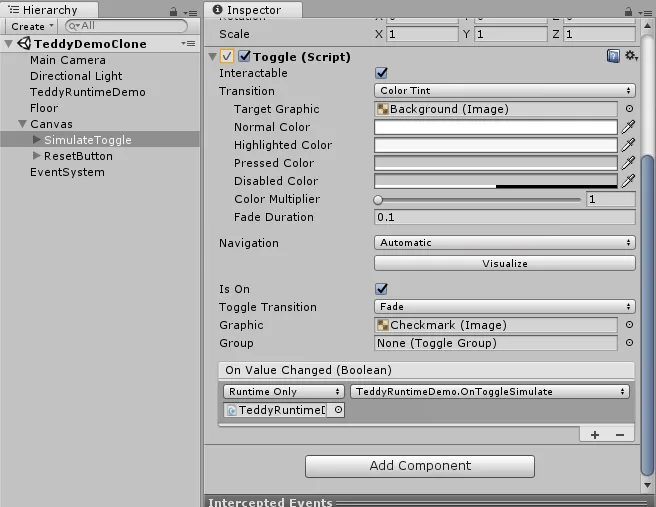
関連するメソッドは以下の通りです。このスクリプトでは、
simulate = false で物理演算なし、true で重力の影響を受けるようになります。
void Start() の中に simulate = false(/true) を組み込めば最初から変更できます。
TeddyRuntimeDemo.cs
        [SerializeField] bool simulate;

        //-------------------------------
        //生成したオブジェクトのisKinematicの切り替え
        //-------------------------------
        public void OnToggleSimulate(bool flag)
        {
            simulate = flag;
            Simulate(simulate);
        }

        void Simulate (bool flag)
        {
            puppets.ForEach(puppet =>
            {
                puppet.body.isKinematic = !flag;
            });
        }
生成したオブジェクトの色を変える
TeddyRuntimeDemo.cs 内に Create() というメソッドがあります。これが実際に手書きのオブジェクトを生み出しているメソッドになります。
ここでは生み出したオブジェクト名を go と名付けています。
この go の Renderer を取得してマテリアルの色を変えれば、様々な色のオブジェクトを作成することができます。
例えば、メソッドの一番下に「go.GetComponent<Renderer>().material.color = Color.red;」を追加すると、赤色になります。
        //-----------------------------------------
        //手書きのオブジェクトを生成する
        //------------------------------------------
        void Create (GameObject go, List<Vector2> screens)
        {
            //(Closureクラスが見つからない。たぶんTeddyRuntime.dllの中に入っていると思われます)
            var closure = Closure.GetClosure(screens);
            if (closure.Count > 2)
            {
                closure.RemoveAt(0);
                closure.RemoveAt(closure.Count - 1);
            }
            screens.AddRange(closure);

            //screenの座標を引数にして、camera.ScreenToWorldPointの座標を返す
            var world = screens.Select(screen => {

                //zOffsetが0だと生成したオブジェクトの中身が見えるので、camera.nearClipPlaneでz軸方向の撮影平面位置を少しずらす
                return camera.ScreenToWorldPoint(new Vector3(screen.x, screen.y, camera.nearClipPlane + zOffset));

            }).ToList();//ToList()で、screens全体にbody.isKinematic = true;を付与

            go.transform.rotation = camera.transform.rotation;//go オブジェクトをカメラの位置に移動

            var points = world.Select(p => new Vector2(p.x, p.y)).ToList();

            // create lowpoly mesh for MeshCollider vertex count limit.(APIの部分)
            var lowpoly = TeddyUtility.CreateMesh(points, 200, 0.85f);
            var collider = go.GetComponent<MeshCollider>();
            collider.sharedMesh = lowpoly;

            TeddyUtility.CreateTeddy(go, points, 600, 0.85f);

            //生成したオブジェクトの色を変更する
            go.GetComponent<Renderer>().material.color = Color.red;
        }
まとめ
-
3Dオブジェクトの物理演算を制御できた。
-
生成したオブジェクトの色を変更することができた。